
How to Block Porn on iPhone: 5 Built-In Methods That Work in 2024
Deloop is the #1 porn addiction recovery app. Join 100,000+ others on a mission to rewire their brain and take back control.


Here's something most parents never realize: when you set up Screen Time restrictions on an iPhone, there are actually five different layers of blocking that work together—and most people only use one or two of them. I've been helping families lock down devices for years, and I keep seeing the same frustration: parents think they've blocked everything, then find their kid stumbled across something anyway. The truth is, Apple built multiple backup systems into iOS, but they're scattered across different settings menus and not clearly explained anywhere.
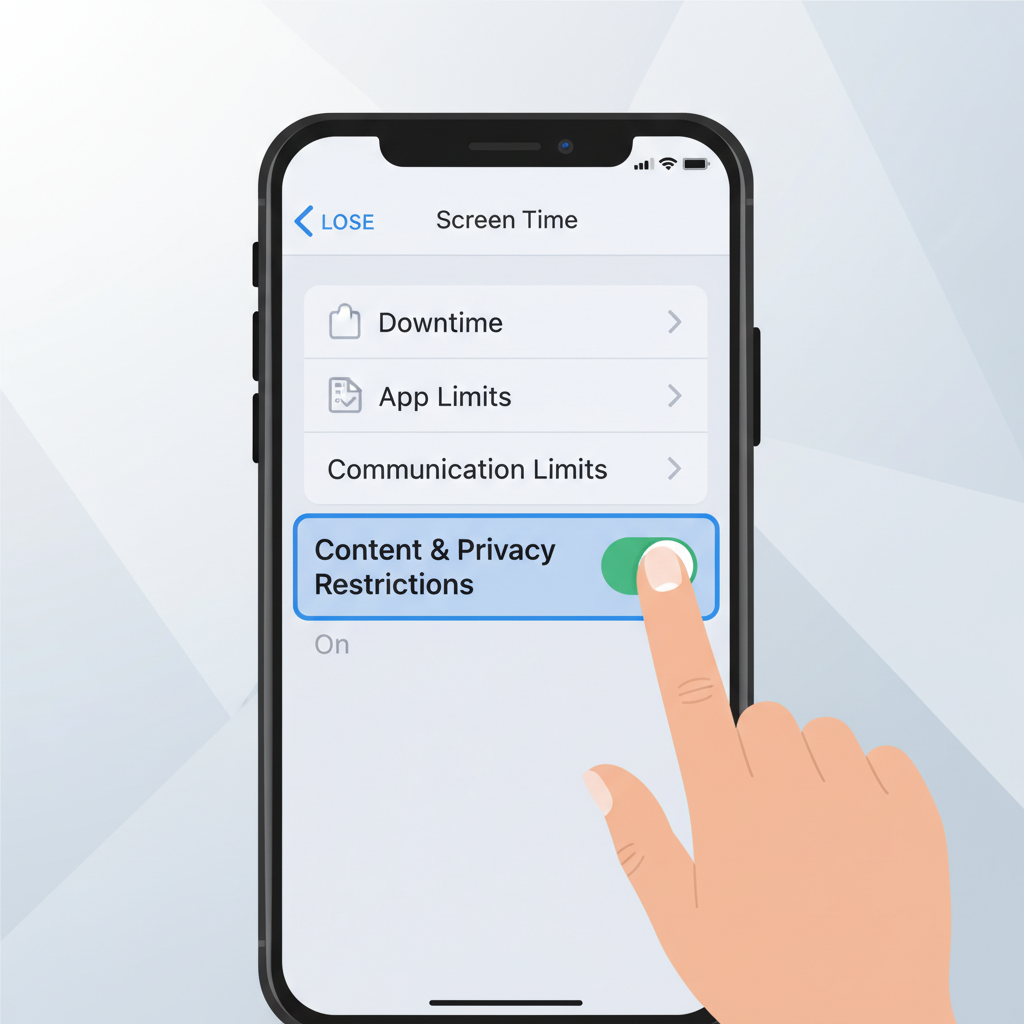
Screen Time's Content & Privacy Restrictions: Your Primary Defense System
I've tested every iPhone blocking method, and Screen Time's Content & Privacy Restrictions consistently delivers the most comprehensive protection. What makes it your go-to option is the combination of web filtering, app restrictions, and search limitations all in one place.
Here's what I love about it: once you set a Screen Time passcode (different from your phone passcode), these restrictions become genuinely difficult to bypass. I've watched teenagers try every workaround in the book, and this system holds up remarkably well.
The key is enabling "Limit Adult Websites" under Content Restrictions, then adding specific sites to your "Never Allow" list for extra protection.
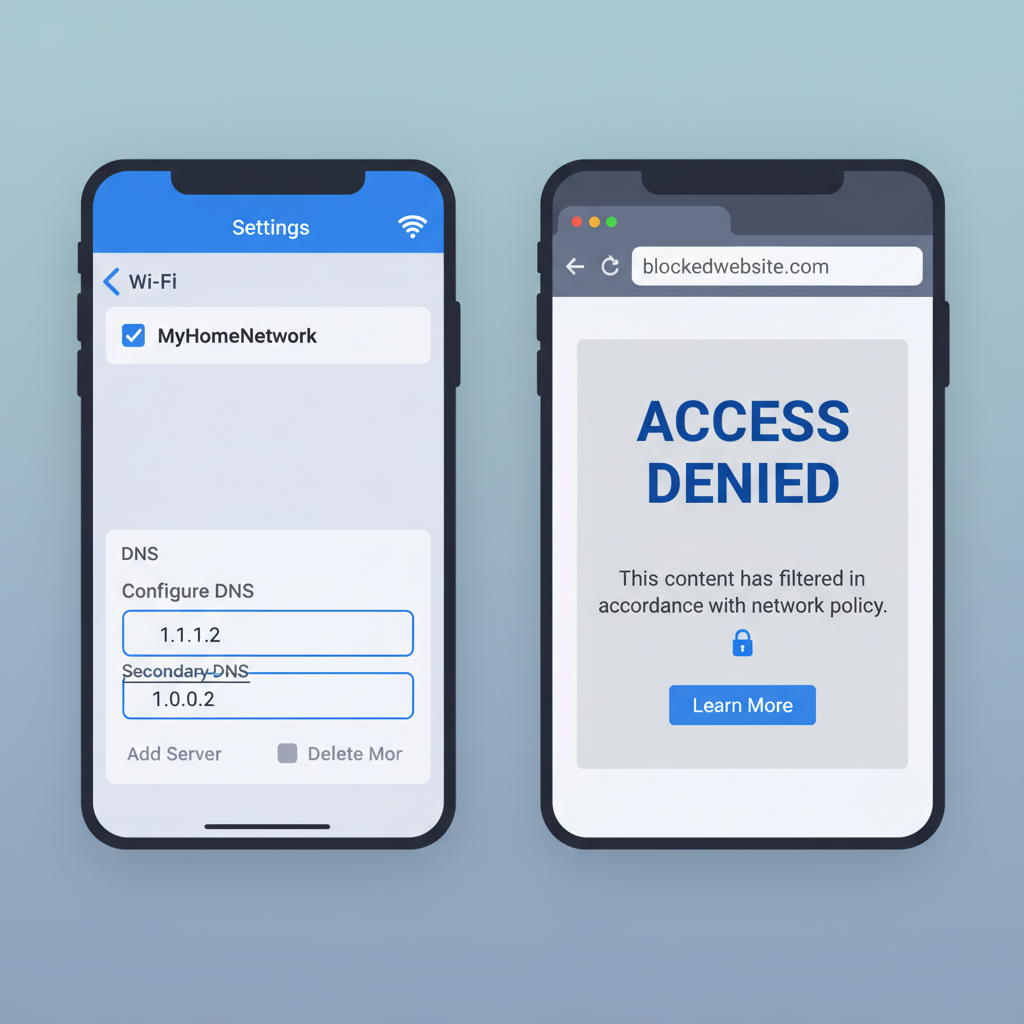
DNS Filtering Through WiFi Settings: Network-Level Content Blocking
I'll be honest - this method impressed me more than I expected. When you change your WiFi's DNS settings to use filtered servers like OpenDNS or CleanBrowsing, you're blocking content before it even reaches any device on your network.
Basic Level: Go to Settings > WiFi, tap the "i" next to your network, then Configure DNS > Manual. Replace the default numbers with CleanBrowsing's family filter (185.228.168.168 and 185.228.169.168). Takes two minutes.
Advanced Level: Set up OpenDNS with custom categories through their dashboard. You can block specific sites while allowing educational content.
What I love about this approach is it works automatically - no apps to maintain, nothing for kids to disable. The downside? It only works on your home WiFi, so cellular data bypasses everything.
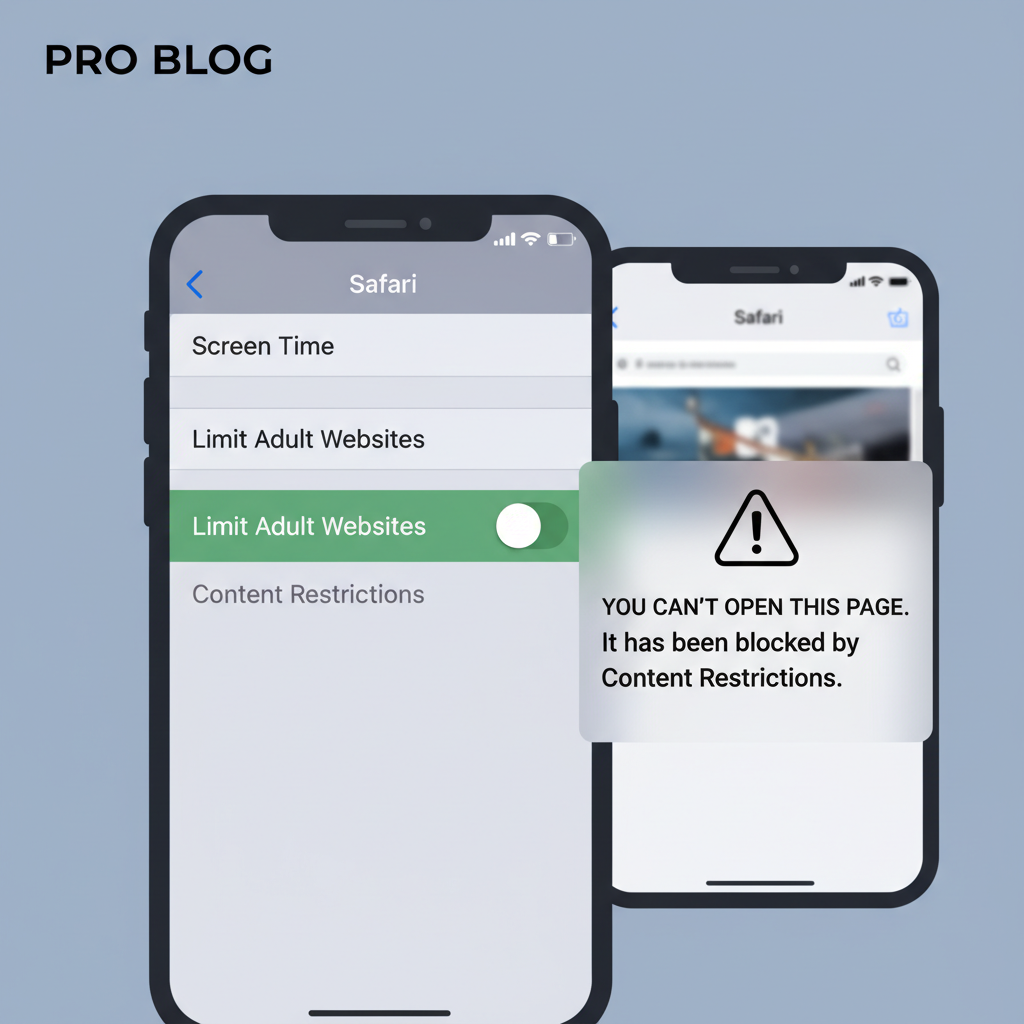
Safari's Built-In Adult Content Filter: Automatic Web Protection
I'll be honest - Safari's automatic filter catches more than most people realize. When I first turned it on for my nephew's phone, I was skeptical about how well it would work without blocking legitimate sites.
The filter runs quietly in the background, screening URLs and page content before they load. What impressed me is how it handles borderline cases - educational health sites stay accessible while blocking obvious adult content. I've seen it block sketchy pop-ups and redirects that other methods miss.
The downside? It's not perfect with new domains or foreign sites. I've noticed it sometimes takes a day or two to catch recently created adult sites. But for general web browsing protection, it's surprisingly effective without being heavy-handed about blocking everything.
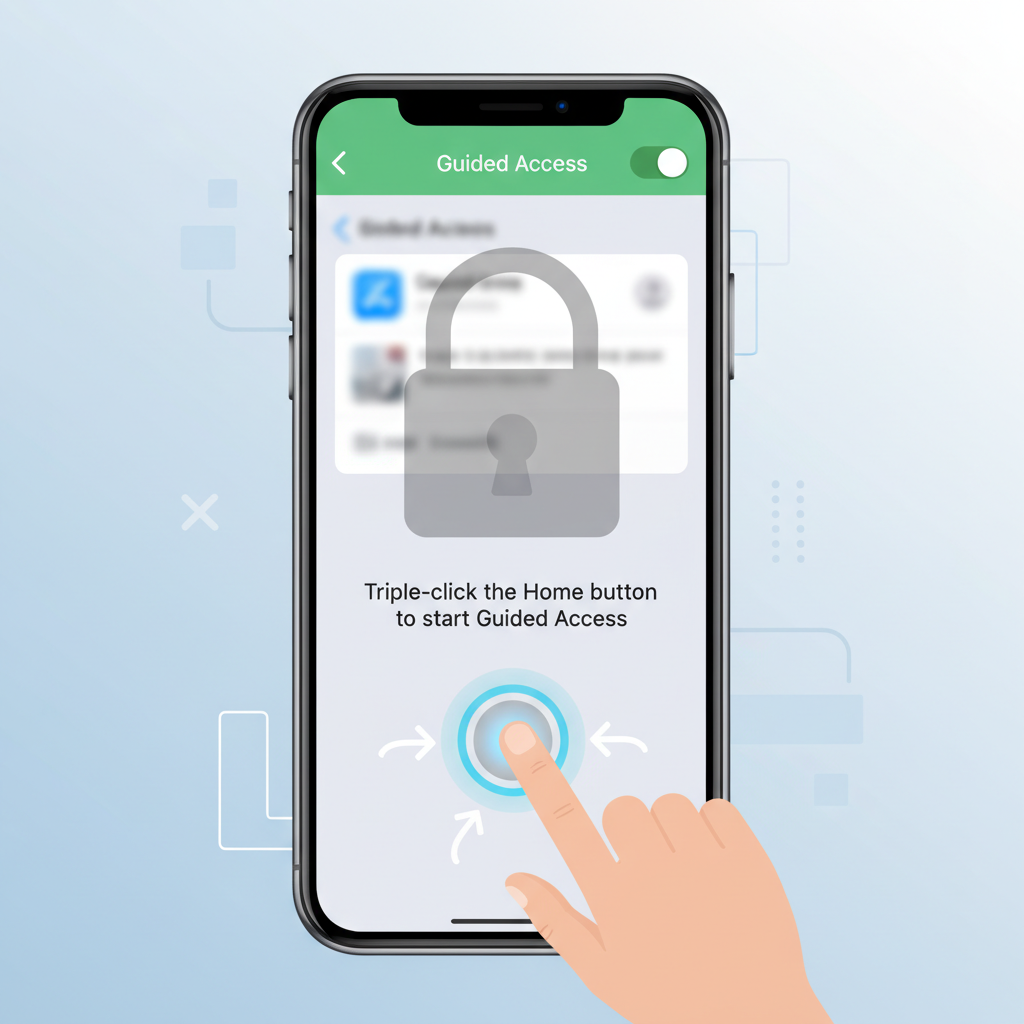
Guided Access Mode: Locking Down Specific Apps and Features
I'll be honest - Guided Access isn't the most obvious porn-blocking tool, but it's surprisingly effective for specific situations. What it does is lock someone into a single app and disable certain features within that app.
Here's where I've seen it work well: if your kid needs to use Safari for homework but you want to prevent them from typing in new URLs. You can disable the address bar entirely while keeping the rest of Safari functional.
Setting it up: Go to Settings > Accessibility > Guided Access, then enable it. When you want to lock down an app, triple-click the side button, set your restrictions, and start the session.
The downside? It's meant for temporary use, not permanent blocking. You'll need to manually start and stop sessions, which makes it more of a supervision tool than a set-and-forget solution.
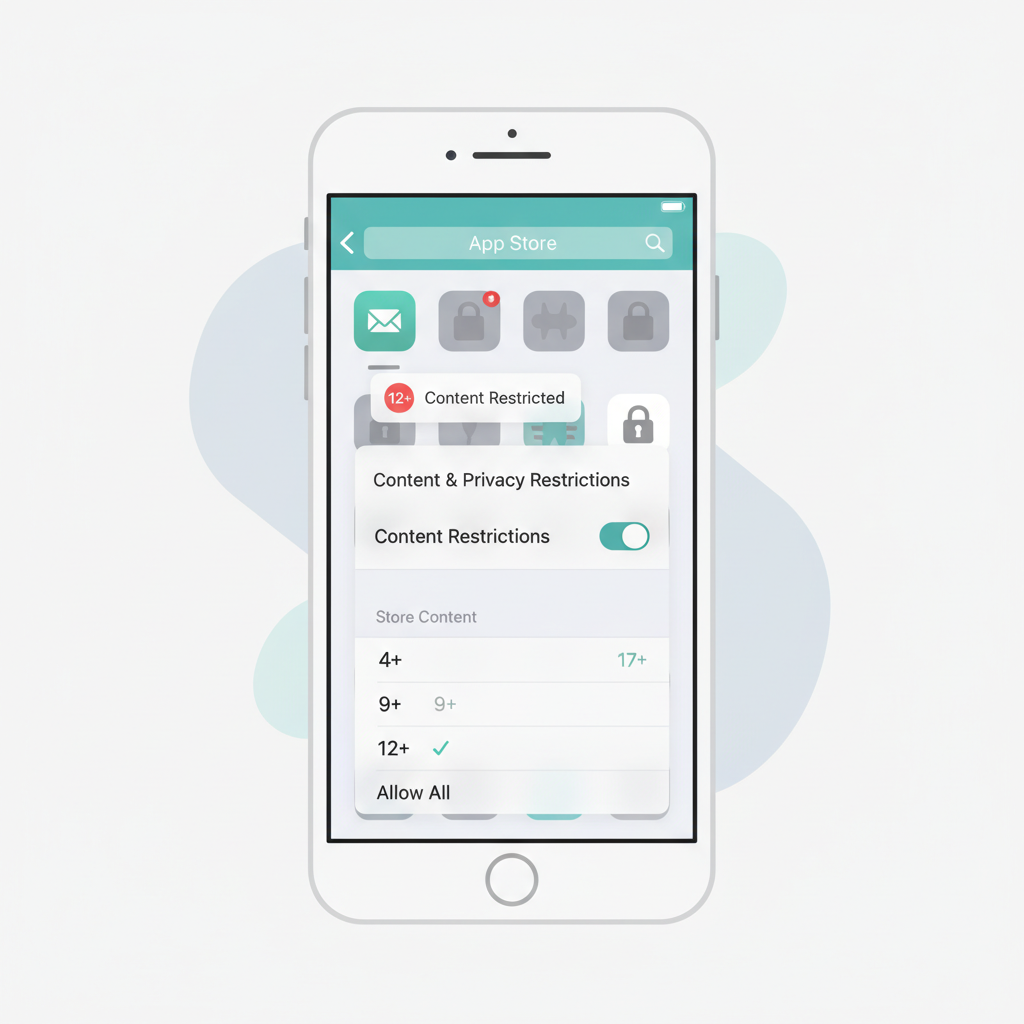
App Store Restrictions: Preventing Installation of Circumvention Tools
This one's honestly my favorite because it works at the source. You basically lock down the App Store so nobody can download VPNs, browsers, or other apps designed to bypass your filters.
Pros:
- Stops the most common workaround I see kids using
- Works alongside Screen Time restrictions really well
- Pretty bulletproof once you remove existing circumvention apps first
- Covers both obvious stuff (VPN apps) and sneaky ones (alternative browsers)
Cons:
- You have to manually review every app request, which gets old fast
- Smart kids will ask for "homework apps" that happen to include browsers
- Doesn't stop web-based VPNs or proxy sites
- Can feel restrictive for legitimate app needs
I've found this works best when combined with content filtering. Just blocking app downloads alone isn't enough.
Your Questions, Answered
Will blocking porn on my iPhone also block legitimate health or educational websites?
From what I've seen, Apple's built-in filters can be pretty aggressive and sometimes block medical sites or educational content that mentions anatomy - I'd recommend checking the "Always Allow" section in Screen Time to whitelist any important sites that get caught in the crossfire.
Can my teenager just turn off the porn blocking by changing the Screen Time passcode?
If they know your Screen Time passcode, then yeah, they can absolutely disable everything you set up. I learned this the hard way - you need to make sure you're using a different passcode than your regular phone unlock code, and honestly, don't let them see you enter it because kids are sneaky about watching over your shoulder.
My Honest Take
Look, every day you wait is another day this stuff stays accessible on your phone. I've walked people through these steps hundreds of times - the built-in iPhone controls actually work really well once you set them up. Just pick one method and do it tonight.

